Prepare a BAS quarter
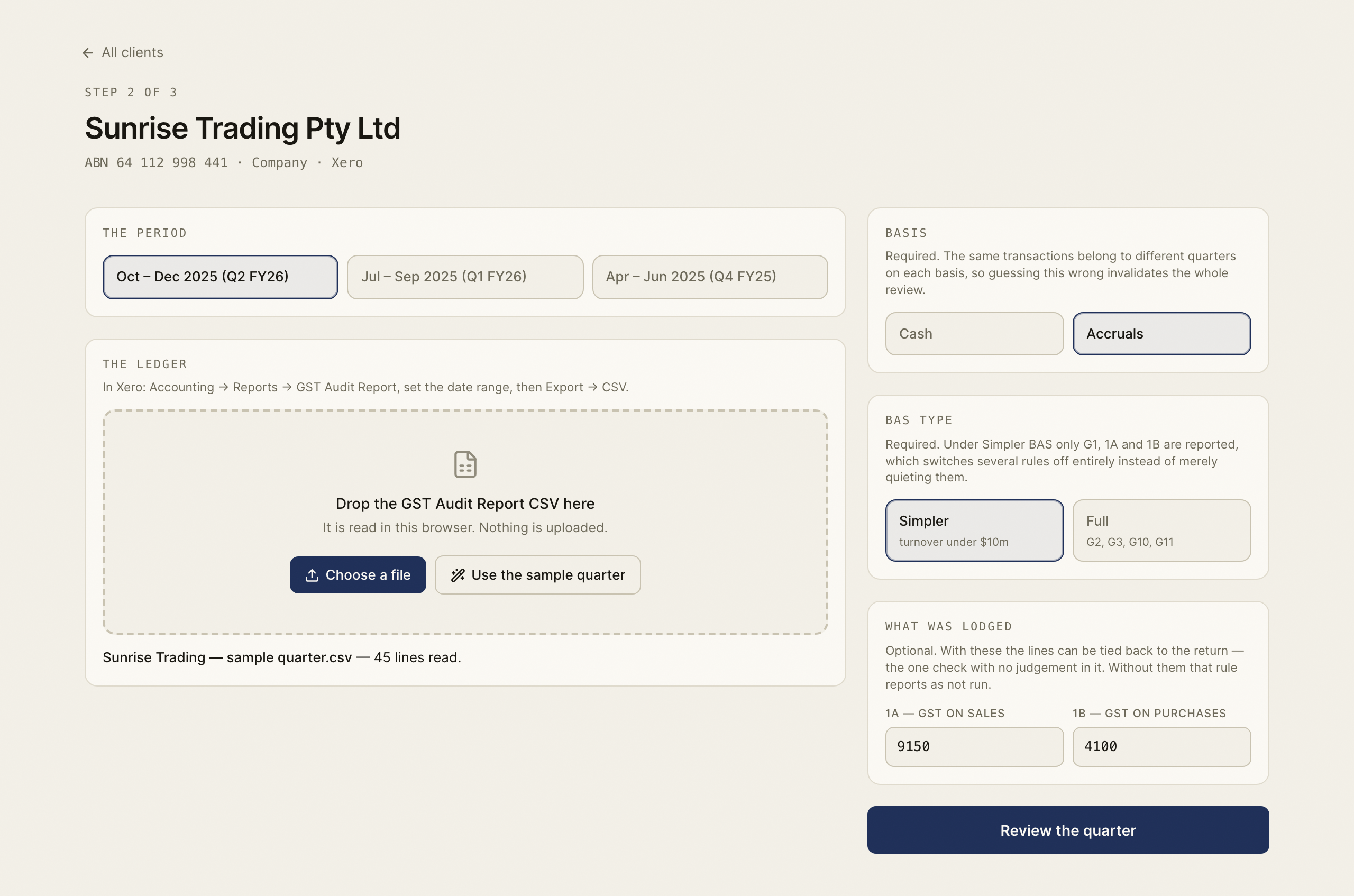
Export a Xero GST Audit Report CSV, choose the period, basis and BAS type, and supply optional lodged figures.
Source reviewed Product documentation
In Xero, go to Accounting → Reports → GST Audit Report, set the BAS date range, then Export → CSV. The report needs its tax-rate column: a transaction amount without its tax code cannot be reviewed by these rules.
In BAS Review, choose the client and The period. Under The ledger, drop the CSV or choose Choose a file. The app reads it in this browser. It shows the filename and number of lines read before you continue.
Select Cash or Accruals under Basis, then Simpler or Full under BAS type. Both choices are required. The client may have a basis on file in Workpapers, but this page asks you to confirm it. The BAS type controls whether checks about G10 and G11 apply.
Under What was lodged, you can enter 1A — GST on sales and 1B — GST on purchases. They are optional, but without them the tie-back rule cannot run. Start the review only after checking the quarter and the export cover the same dates.
Unknown tax rate names stop the review
If the export contains a tax-rate name the parser does not recognise, those lines are held out and the run control stays disabled. Check the tax-rate names or export rather than treating a partial quarter as clean.