Sign in and protect your account
Email codes, magic links, connected identity providers and the second-factor step.
Source reviewed Product documentation
Open the product you intend to use and choose Sign in. Use the email address on your team invitation so the product can resolve your practice membership.
Email code or magic link
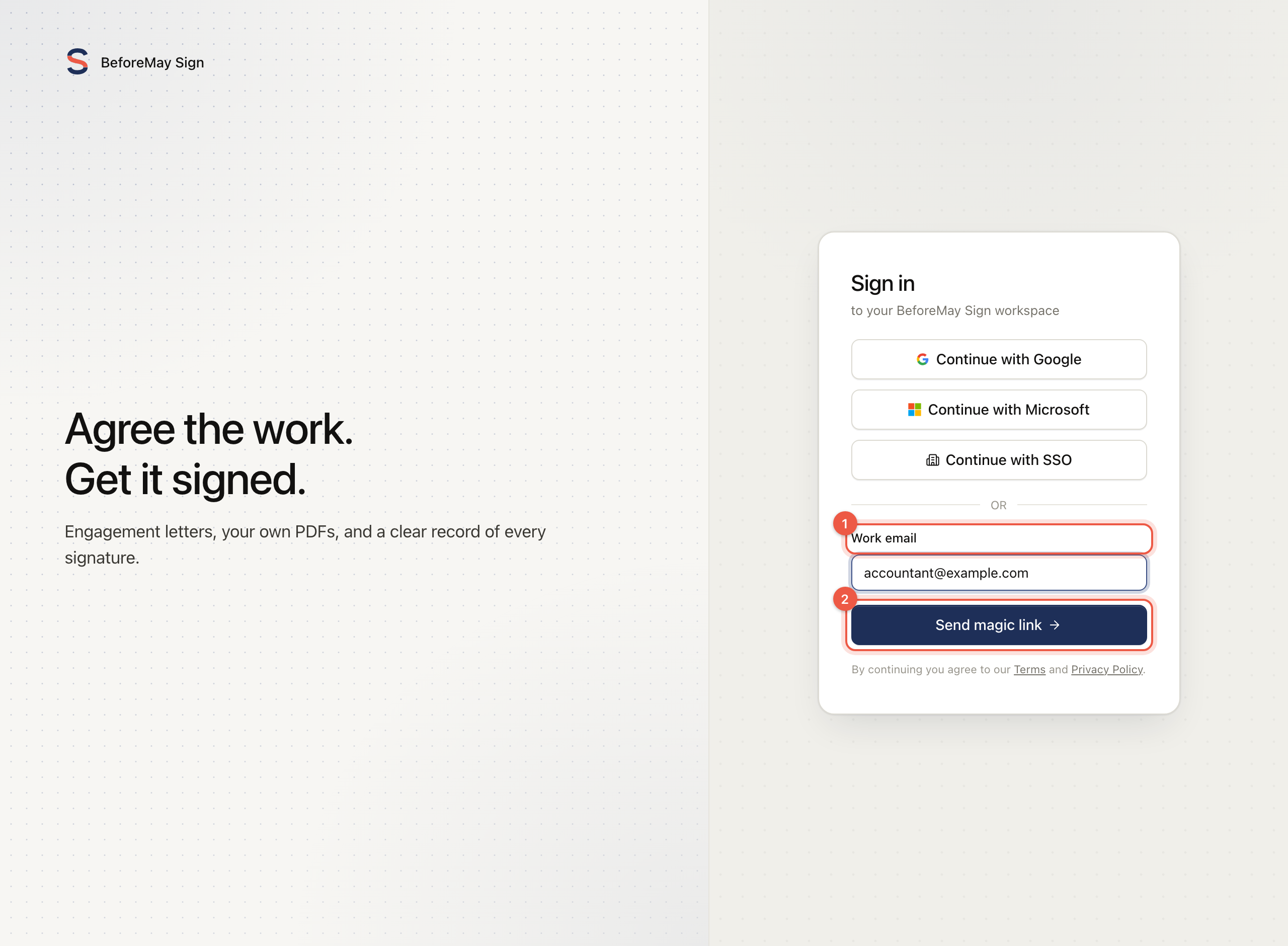
Enter your email address and follow the sign-in screen. For the code route, enter the six-digit code from the email; you can paste the whole code into the boxes. If you requested a magic link, open it in the browser you intend to use.
- Enter Work email, then choose Send magic link.
- Check that Enter your code shows the address you intended. The email offers a link as well as the six-digit code.
- Open that link, or enter the code on the original screen. Six complete digits are submitted automatically; the sign-in button also remains available.
- Finish the second-factor screen when asked, then confirm your practice.
Resend has a 60-second cooldown. Check spam and the address you entered before requesting another message. Use the latest message rather than trying every older code.
Google, Microsoft and SSO
Use a provider offered on the screen. A provider sign-in still needs to resolve the invited account and its practice membership. For SSO, the domain of your work email identifies the configured identity provider. If the domain is not set up, use another offered sign-in method or contact your practice's administrator.
Microsoft sign-in and Outlook connection are separate. Signing in with Microsoft does not by itself let BeforeMay read or send your mailbox. Follow the Outlook setup tutorial for that connection.
Second factor
Practice-member setup requires a passkey or authenticator app. If you have not added one, follow the setup screen before entering the workspace. Eligible existing members can see a temporary grace-period banner; use Set it up now and complete setup before the deadline shown.
For a passkey, choose Add a passkey, complete your device's prompt, then Confirm with your passkey. For an authenticator, choose Use an authenticator app, scan the QR code and verify a code from that app. Displaying the QR code or closing the device prompt does not finish setup.
On later sign-ins, use the code from your authenticator app, or Use your passkey when you have registered one and the browser supports it. A passkey prompt you close has not completed the check; open it again when ready.
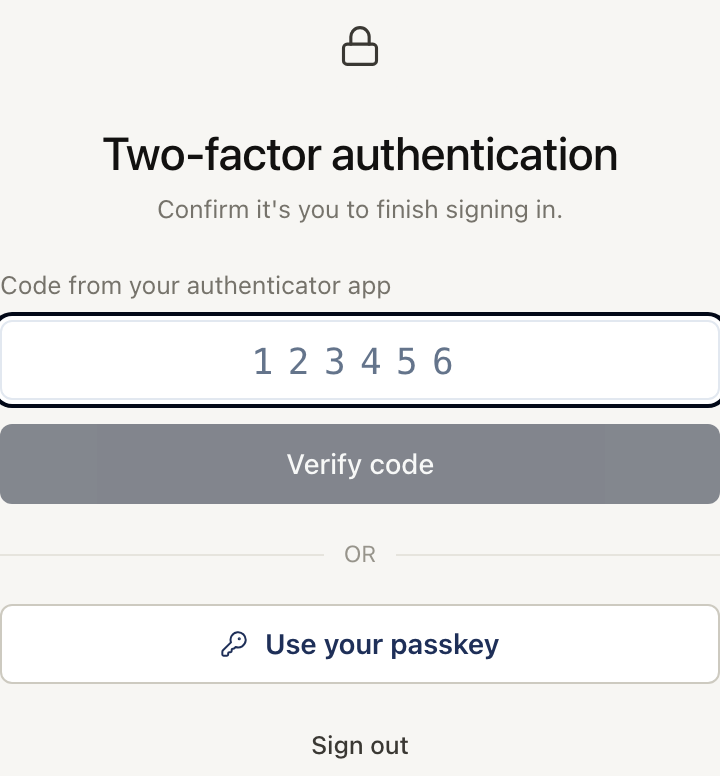
Authenticator codes here come from your authenticator app, rather than the email used in the previous step. After successful verification, the product continues to your workspace or any setup it still needs.
The practice screen locks after 30 minutes of inactivity. Unlock it with an offered second factor, or sign out. Repeated incorrect authenticator codes can temporarily block code verification; follow the error's retry time rather than continuing to guess.
Do not share login codes, passkey access or a signed-in browser with colleagues. Invite each colleague as their own member instead.
If you cannot get in
- No email: confirm the address, check spam and wait for the resend timer.
- Wrong practice: confirm which address and provider you signed in with.
- Passkey unavailable: try a supported browser or an enrolled authenticator.
- Lost all second factors: ask an authorised practice Owner or Admin, or contact support, for a recovery reset. After a reset, sign in and set up a new factor; the old devices no longer provide access. Creating a second practice will not recover access to the first.
For the technical session boundary, read access controls.
Check that sign-in is finished
| What you see | Meaning | Next action |
|---|---|---|
| Enter your code | The email was requested; account verification is still pending | Use the latest code or link |
| Secure your sign-in | A second factor still needs to be set up | Add and confirm a passkey, or verify an authenticator code |
| Two-factor authentication | The account still needs its enrolled second factor | Verify using an offered method |
| Setup deadline banner | An eligible account is temporarily inside its setup grace period | Set up a factor before the displayed deadline |
| Locked | The workspace is locked after inactivity | Unlock using an offered method or sign out |
| Join your practice or practice selection | Authentication succeeded; confirm the membership/workspace | Join or select the intended practice |
| Setup wizard | The product has setup or policy steps to finish | Follow practice setup |
| Product workspace | You can work in the selected practice | Confirm its name and your role before opening client data |