Team roles and invitations
Invite colleagues, choose access and hand over practice ownership.
Source reviewed Product documentation
Each colleague signs in with their own account. Open your product's Team settings to see the practice roster and outstanding invitations.
The three roles
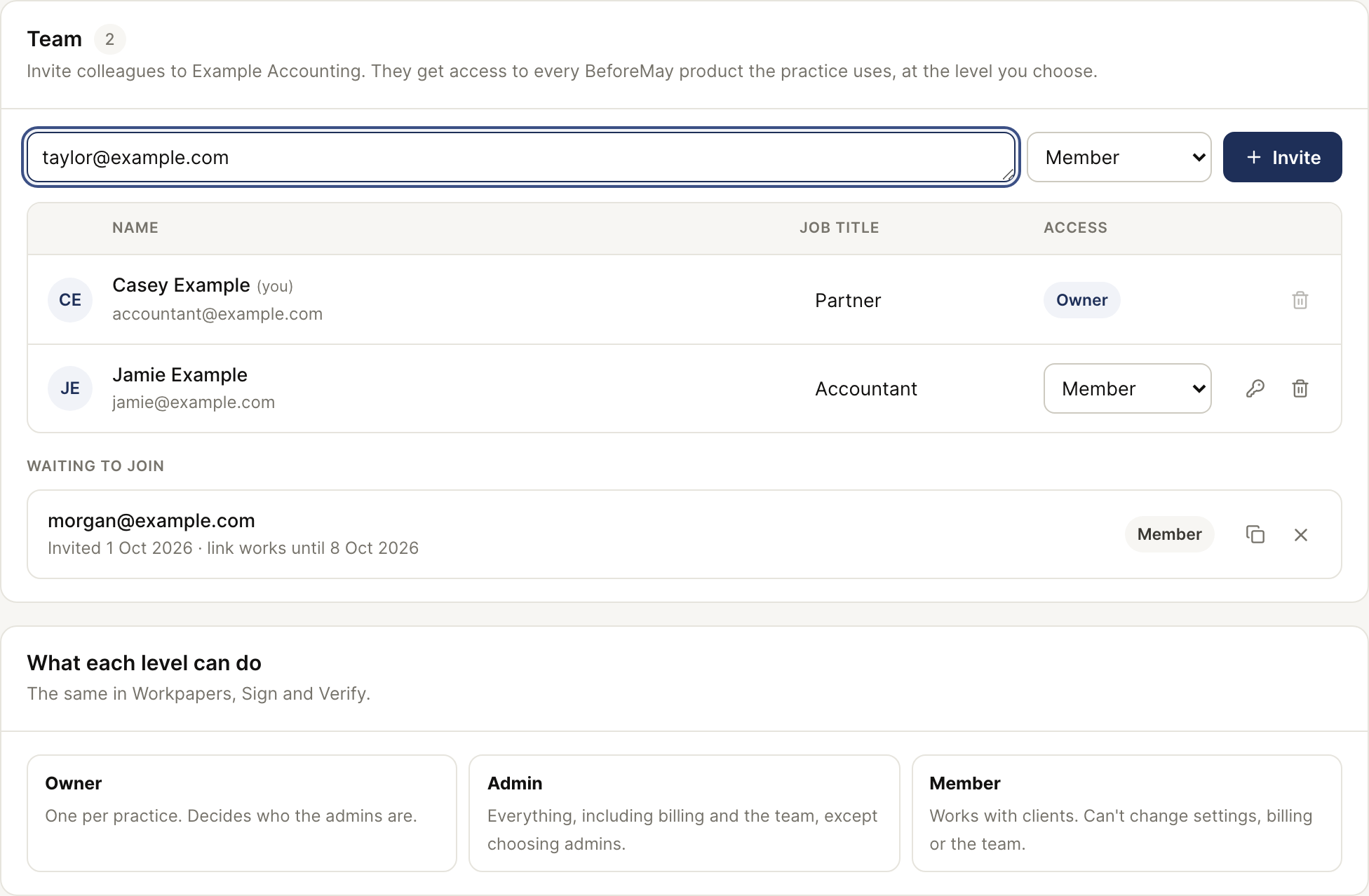
| Role | What it permits |
|---|---|
| Owner | Full access; chooses Admins and can transfer ownership to an existing member. |
| Admin | Manages clients, practice settings, billing and the team; cannot choose Admins or transfer ownership. |
| Member | Works with the practice's clients; cannot manage settings, billing or the team. |
There is one Owner. Ownership moves through a handover to an existing member, not an invitation to a second Owner. An Admin can remove Members; the Owner can remove Admins and Members. The Owner cannot remove their own seat in place of transferring ownership.
Invite a colleague
- Open Team with an Owner or Admin account.
- Enter one email or paste the addresses offered by the invite form.
- Choose the permitted access level and review the addresses.
- Create the invitations. The recipient opens the link and signs in using the invited address.
- Confirm the person appears in the roster after accepting.
Read the invitation result as well as the list. An invitation can be created even when its email could not be sent. Resolve delivery using the offered link controls; do not assume an email error means nothing was created.
Confirm that a colleague has joined
- Ask the colleague to open the latest invitation and sign in using the invited address. They must accept the invitation, not only sign in.
- Refresh the team screen and find them in the main roster with the intended Access level. Waiting to join means they are not yet a joined member.
- Have them select the practice in the product they need. Missing Team or settings controls can be expected for a Member; check their role before treating that as a broken account.
The job-title field describes their position. It does not grant permissions; the Access column does. A colleague should not need your login to finish their own setup.
If they have not joined, check the email, link expiry and selected account. The pending row's copy control issues a new link and invalidates the previous one; send the replacement and stop using the older invitation.
An invitation from Sign or Verify returns to that product after sign-in. Membership is still for the shared practice, not a second product-specific team.
Change or remove access
The Owner can change an existing person's access. Revoke an outstanding invite when it is no longer needed. Removing a colleague's membership does not erase the practice's client records.
API keys act as the practice rather than the colleague who created them. Review API keys separately when someone leaves; removing their membership is not a replacement for revoking an integration credential.
Next: add the practice's client list, or return to the setup walkthrough.