Build your first workpaper
Create a case, add evidence, prepare the workbook and complete your own review.
Source reviewed Product documentation
Before you begin
Have the client, financial year and return type, plus readable source documents. Choose the correct practice. This walkthrough prepares an Excel workpaper; it does not lodge a return.
If you have not yet confirmed your account, practice and client directory, finish practice setup first. The same client can have several cases for different years; choose the intended client and period together.
Create the case
From Cases, choose New case and confirm the client, year and one of the return kinds offered by the current form. The return kind selects the relevant workpaper pack. If the kind you need is not offered, confirm support before proceeding; do not substitute a different entity kind.
Use Upload & auto-fill for a prior return or ATO prefill, or Enter manually. Individual is available to every practice; Company and Trust require invitation access. Partnership is not offered in the new-case picker.
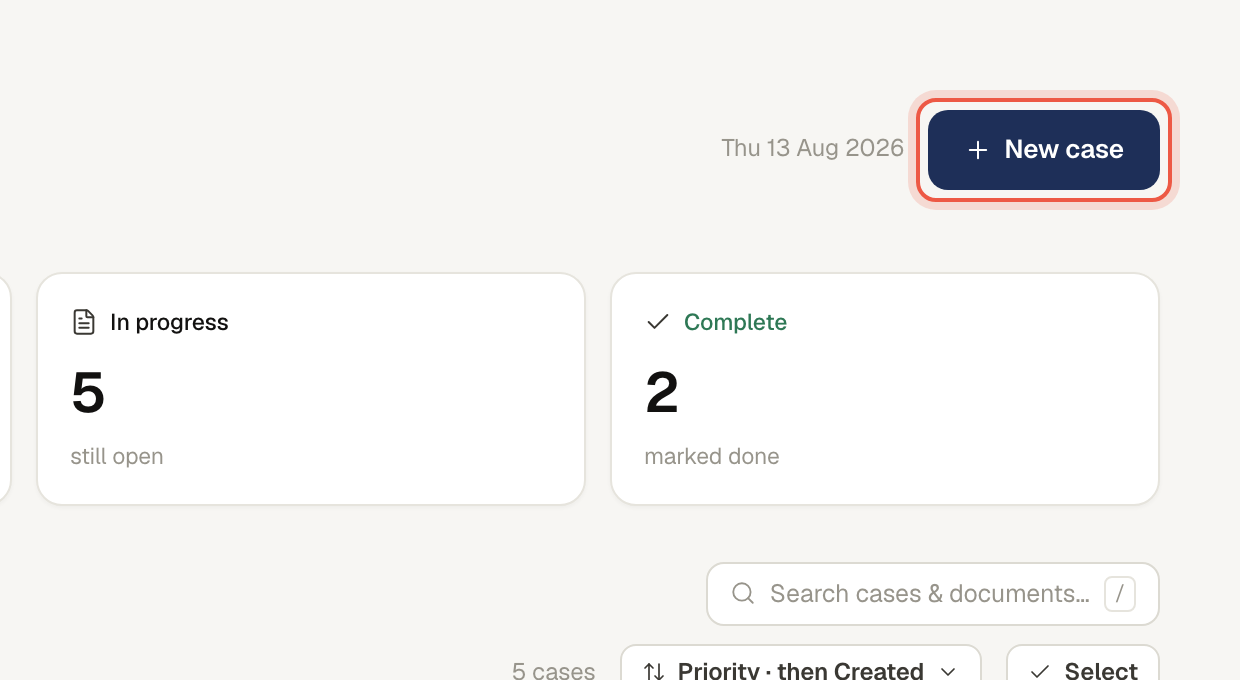
Check: the new case opens with the intended client and year. If you already have a case for that work, inspect it before creating another one.
Add evidence
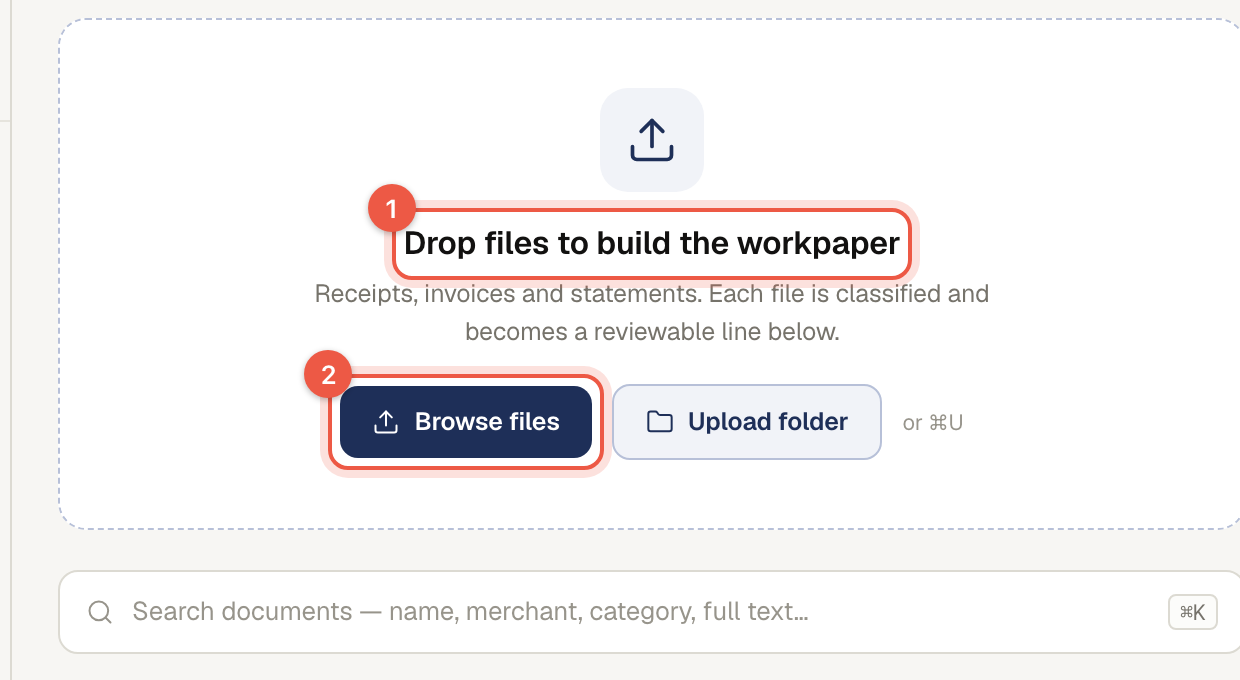
Drop files on the case or use its file picker. Add the prior return and current ATO prefill when relevant, alongside the year's actual source records. Check the Sources list, analysis state and any unreadable or duplicate notice. Wait for uploads and required reading to finish before preparing the paper.
Check: each intended file is in Sources, with any reading failure or missing-evidence issue understood. Selecting files in a picker is not the same as a finished upload.
Use what to upload for examples by entity and file formats for limits.
Prepare the paper
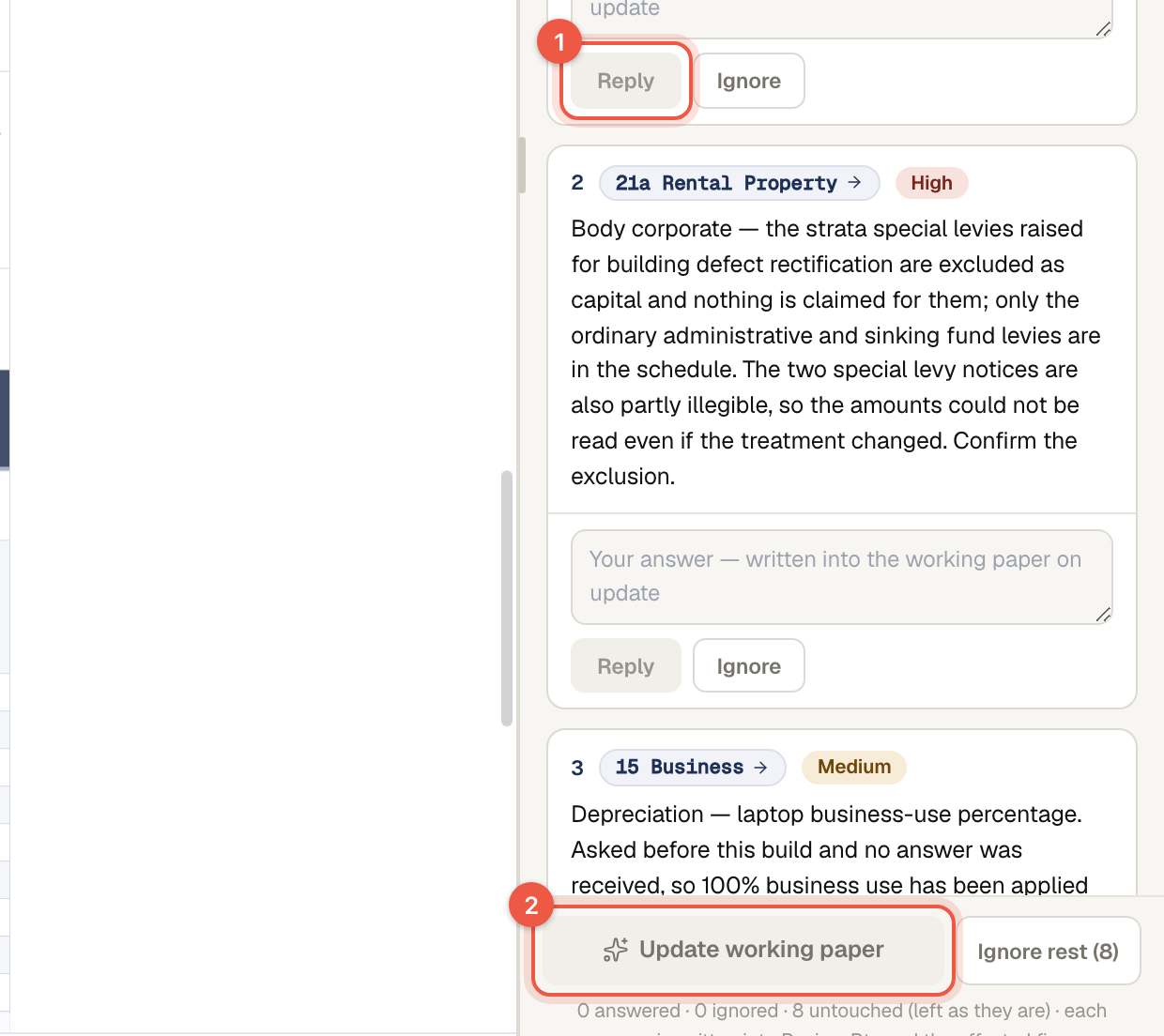
Choose Prepare workpaper from the case. Check the preflight choices, notes, price and any incomplete-evidence warning. Independent review and who answers AI questions can be selected where your account permits them. AI auto-answer permission is a personal setting in Settings → Advanced; read its acknowledgement before enabling it.
The action reports Preparing workpaper…, Reviewing — open draft or Waiting on your answer… as the run progresses. A draft can be inspected read-only, but is not the delivered workbook. Respond to questions using the question guide.
Check: read the run's current state. Waiting on your answer… needs your response; Reviewing — open draft is still in progress. Continue to your final review only when a workbook is delivered.
Review the result
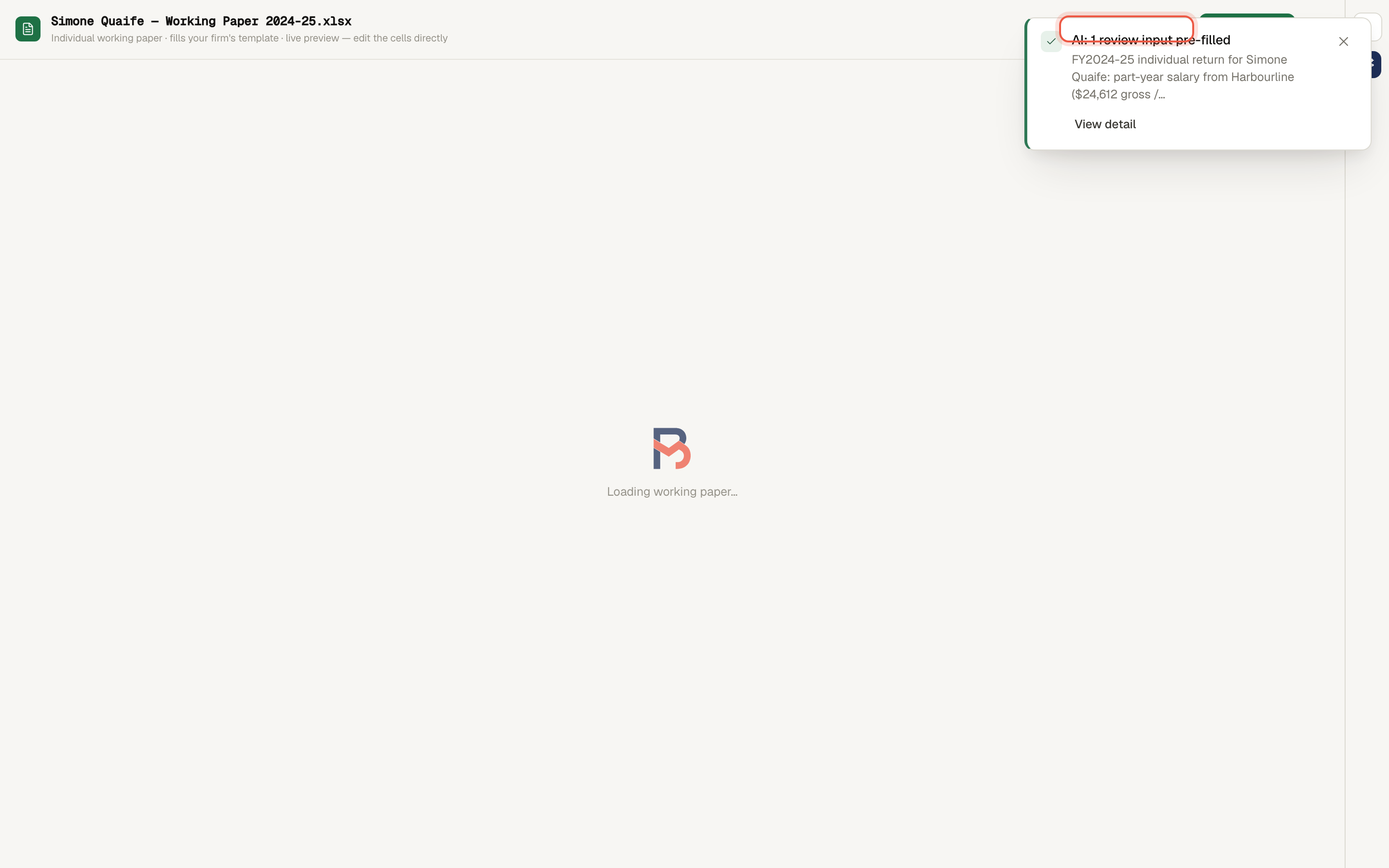
Open Workpaper when output is delivered. Check the client and year, material amounts, source references, review points and missing documents. Resolve findings and inspect any changes the assistant makes. Delivery does not establish that every automated check passed or your review is complete.
The build can deliver a rendered paper with remaining check findings. Other conditions prevent delivery or hold the run for investigation. Read the stated result rather than treating every available workbook as a clean outcome.
Save, download and complete
Editable non-formula cells can be corrected in the current workbook. Save and
check the resulting version and affected totals. Download the current .xlsx
for your records. Use Mark complete only after your own review is finished.
Keep the relevant source documents with the reviewed version.
Manual edits autosave; check the saved state before relying on a download. History records edits and delivered versions. An update normally continues from the edited paper; a fresh build starts from the source documents again.
When the result is incomplete
If evidence changed after preparation, use the case's Prepare/update workflow to refresh it. If a run fails, keep its reference and the error; do not repeatedly start new builds without understanding the cause. A failed draft remains an inspection aid, not output to file as complete.
Completion check
| Check | What to inspect |
|---|---|
| Correct context | Client, entity kind and financial year on the case and workbook |
| Evidence included | The intended files are in Sources; reading failures and missing evidence are resolved or recorded |
| Delivered output | You are looking at the delivered workbook, rather than an in-progress or failed draft |
| Review finished | Material figures and source references checked; questions and remaining findings dealt with |
| Saved version retained | Reopen the current version after edits, compare affected totals and download the intended .xlsx |
| Case complete | Use Mark complete after your review; a completed case is not a lodged return |